

Aadhaar Biometric Lock or Unlock and Authentication History
Aadhaar Biometric Lock or Unlock and Authentication History
What is Biometric Locking?
Biometric Locking/Unlocking is a service that allows an Aadhaar holder to lock and temporarily unlock their biometrics. This facility aims to strengthen privacy and confidentiality of Aadhaar number holder’s Biometrics Data.
What all Biometric data can be locked?
Fingerprint, iris and Face as a biometric moadlity will be locked and after biometric locking, Aadhaar holder will not be able to perform the Aadhaar authentication using the above mentioned biometric modalities.
What happens when Biometric is locked?
Locked Biometrics confirms that Aadhaar holder will not be able to use Biometrics (fingerprints/iris/Face) for authentication, it is a safety feature to stop any kind of biometric authentication.
It also ensures that any entity by any means cannot perform biometric based Aadhaar authentication for that Aadhaar holder.
How to Unlock (locked)Biometrics?
Once Aadhaar number holder enables Biometric Locking system their biometric remains locked till the Aadhaar Holder chose any below mentioned option:
Unlock it (which is temporary ) or Disable the Locking system?
The biometric unlock can be done by Aadhaar number holder either by visiting UIDAI website, enrolment centre, Aadhaar Seva Kendra(ASK), through m-Aadhaar.
Note: Registered Mobile Number is essential to avail this service. In case your mobile number is not registered with Aadhaar visit the nearest Enrolment Centre/Mobile Update End Point.
Who and when to lock Biometrics?
Aadhaar number holders who have registered mobile number may lock their biometrics. This facility aims to strengthen privacy and confidentiality of Aadhaar number holder’s Biometrics Data
After locking biometrics if a UID is used for invoking any of the Authentication services using a biometric modality (Fingerprint/Iris/Face) a specific error code ‘330’ indicating biometrics are locked will be displayed and the entity will not be able to perform the biometric authentication.
Aadhaar Authentication History
What is Aadhaar Authentication history?
Aadhaar Authentication history service hosted on UIDAI Website provides detailed authentication transactions logs for Aadhaar authentication performed by the individual concerned in last six months & maximum 50 records can be viewed at instance.
Where can an Aadhaar number holder check his/her Aadhaar Authentication history?
Authentication History service is hosted on UIDAI Website at URL https://resident.uidai.gov.in/aadhaar-auth-history OR Aadhaar number holder may use this service through mAadhaar App
What is the procedure for checking Aadhaar Authentication history on UIDAI websites?
Aadhaar number holder can check his/her Aadhaar Authentication history from UIDAI Website https://resident.uidai.gov.in/aadhaar-auth-history or through mAadhaar App by using his/her Aadhaar Number/VID & enter security code and follow the mentioned procedure.
Note: Registered mobile number is mandatory to avail this service.
What Information Aadhaar number holder can get from Aadhaar Authentication history?
Aadhaar number holder can get the following information in Aadhaar Authentication history against every Authentication done by Aadhaar number holder.
Aadhaar Biometric Lock or Unlock and Authentication History
1. Auth Modality.
2. Date & Time of Authentication.
3. UIDAI Response code.
4. AUA Name
5. AUA Transaction ID (With Code)
6. Authentication Response (Success/Failure)
7. UIDAI Error code
This facility allows me to view maximum 50 authentication records. How can I check more records?
Aadhaar number holder can view details of all authentication records performed by any Authentication User Agency (AUA) or by him/her in the last 6 months. However, maximum of 50 records can be viewed at one point of time. If Aadhaar number holder want to check more records then he/she may require to select the date range in calendar & accordingly authentication records can be viewed.
Some of authentication transactions records are showing as failed, what should I do?
For every failed authentication transaction record, specific error code is assigned. Please check the details of error code number against that failed authentication transaction to know the reason of failure.
If I have not performed some of the transactions listed in the records, what should I do?
If the listed authentication transaction is not performed by the Aadhaar number holder, Aadhaar number holder may contact the respective Authentication User Agency (AUA) for further details.
What is UIDAI Response Code in the authentication records?
For every authentication transaction performed by an Aadhaar number holder, UIDAI generates a unique code to identify the transactions and sends the same to Authentication User Agency (AUA) along with the response. This Response Code is helpful to uniquely identify the transaction by AUA as well as UIDAI and may be used for any further enquiry from AUA by the Aadhaar number holder.
What is AUA Transaction ID in the authentication records?
For every authentication transaction performed by an Aadhaar number holder, AUA generates a unique Transaction ID to identify the transaction and sends the same to UIDAI as part of the authentication request. This Transaction ID along with Response Code can be used for any further enquiry from AUA by the Aadhaar number holder.
What is Auth Modality?
UIDAI provides authentication facility with different modes such as demographic, biometric (fingerprint , Iris or face) or One Time Password (OTP). Auth Modality shows the mode of authentication used to perform that specific authentication transaction.
What are Error Codes?
An Error Code provide the details/reason for the failure of authentication transaction. For Error Codes details, Aadhaar number holder may refer to Aadhaar Authentication API document published on UIDAI website.
Below are Error Code List –
“100” – Personal information demographic data did not match.
“200” – Personal address demographic data did not match.
“300” – Biometric data did not match.
“310” – Duplicate fingers used.
“311” – Duplicate Irises used.
“312” – FMR and FIR cannot be used in same transaction.
“313” – Single FIR record contains more than one finger.
“314” – Number of FMR/FIR should not exceed 10.
“315” – Number of IIR should not exceed 2.
“316” – Number of FID should not exceed 1.
“330” – Biometrics locked by Aadhaar holder.
“400” – Invalid OTP value.
“402” – “txn” value did not match with “txn” value used in Request OTP API.
“500” – Invalid encryption of session key.
“501” – Invalid certificate identifier in “ci” attribute of “Skey”.
“502” – Invalid encryption of PID.
“503” – Invalid encryption of Hmac.
“504” – Session key re-initiation required due to expiry or key out of sync.
“505” – Synchronized Key usage not allowed for the AUA.
“510” – Invalid Auth XML format.
“511” – Invalid PID XML format.
“512” – Invalid Aadhaar holder consent in “rc” attribute of “Auth”.
“520” – Invalid “tid” value.
“521” – Invalid “dc” code under Meta tag.
“524” – Invalid “mi” code under Meta tag.
“527” – Invalid “mc” code under Meta tag.
“530” – Invalid authenticator code.
“540” – Invalid Auth XML version.
“541” – Invalid PID XML version.
“542” – AUA not authorized for ASA. This error will be returned if AUA and ASA do not have linking in the portal.
“543” – Sub-AUA not associated with “AUA”. This error will be returned if Sub-AUA specified in “sa” attribute is not added as “Sub-AUA” in portal.
“550” – Invalid “Uses” element attributes.
“551” – Invalid “tid” value.
“553” – Registered devices currently not supported. This feature is being implemented in a phased manner.
“554” – Public devices are not allowed to be used.
“555” – rdsId is invalid and not part of certification registry.
“556” – rdsVer is invalid and not part of certification registry.
“557” – dpId is invalid and not part of certification registry.
“558” – Invalid dih.
“559” – Device Certificate has expired.
“560” – DP Master Certificate has expired.
“561” – Request expired (“Pid->ts” value is older than N hours where N is a configured threshold in authentication server).
“562” – Timestamp value is future time (value specified “Pid->ts” is ahead of authentication server time beyond acceptable threshold).
“563” – Duplicate request (this error occurs when exactly same authentication request was re-sent by AUA).
“564” – HMAC Validation failed.
“565” – AUA license has expired.
“566” – Invalid non-decryptable license key.
“567” – Invalid input (this error occurs when unsupported characters were found in Indian language values, “lname” or “lav”).
“568” – Unsupported Language.
“569” – Digital signature verification failed (means that authentication request XML was modified after it was signed).
“570” – Invalid key info in digital signature (this means that certificate used for signing the authentication request is not valid – it is either expired, or does not belong to the AUA or is not created by a well-known Certification Authority).
“571” – PIN requires reset.
“572” – Invalid biometric position.
“573” – Pi usage not allowed as per license.
“574”– Pa usage not allowed as per license.
“575”– Pfa usage not allowed as per license.
“576” – FMR usage not allowed as per license.
“577” – FIR usage not allowed as per license.
“578” – IIR usage not allowed as per license.
“579” – OTP usage not allowed as per license.
“580” – PIN usage not allowed as per license.
“581” – Fuzzy matching usage not allowed as per license.
“582” – Local language usage not allowed as per license.
“586” – FID usage not allowed as per license. This feature is being implemented in a phased manner.
“587” – Name space not allowed.
“588” – Registered device not allowed as per license.
“590” – Public device not allowed as per license.
“710” – Missing “Pi” data as specified in “Uses”.
“720” – Missing “Pa” data as specified in “Uses”.
“721” – Missing “Pfa” data as specified in “Uses”.
“730” – Missing PIN data as specified in “Uses”.
“740” – Missing OTP data as specified in “Uses”.
“800” – Invalid biometric data.
“810” – Missing biometric data as specified in “Uses”.
“811” – Missing biometric data in CIDR for the given Aadhaar number.
“812” – Aadhaar holder has not done “Best Finger Detection”. Application should initiate BFD to help Aadhaar holder identify their best fingers.
“820” – Missing or empty value for “bt” attribute in “Uses” element.
“821” – Invalid value in the “bt” attribute of “Uses” element.
“822” – Invalid value in the “bs” attribute of “Bio” element within “Pid”.
“901” – No authentication data found in the request (this corresponds to a scenario wherein none of the auth data – Demo, Pv, or Bios – is present).
“902” – Invalid “dob” value in the “Pi” element (this corresponds to a scenarios wherein “dob” attribute is not of the format “YYYY” or “YYYYMM-DD”, or the age is not in valid range).
“910” – Invalid “mv” value in the “Pi” element.
“911” – Invalid “mv” value in the “Pfa” element.
“912” – Invalid “ms” value.
“913” – Both “Pa” and “Pfa” are present in the authentication request (Pa and Pfa are mutually exclusive).
“930 to 939” – Technical error that are internal to authentication server.
“940” – Unauthorized ASA channel.
“941” – Unspecified ASA channel.
“950” – OTP store related technical error.
“951” – Biometric lock related technical error.
“980” – Unsupported option.
“995” – Aadhaar suspended by competent authority.
“996” – Aadhaar cancelled (Aadhaar is no in authenticable status).
“997” – Aadhaar suspended (Aadhaar is not in authenticatable status).
“998” – Invalid Aadhaar Number.
“999” – Unknown error.
Aadhaar Biometric Lock or Unlock and Authentication History
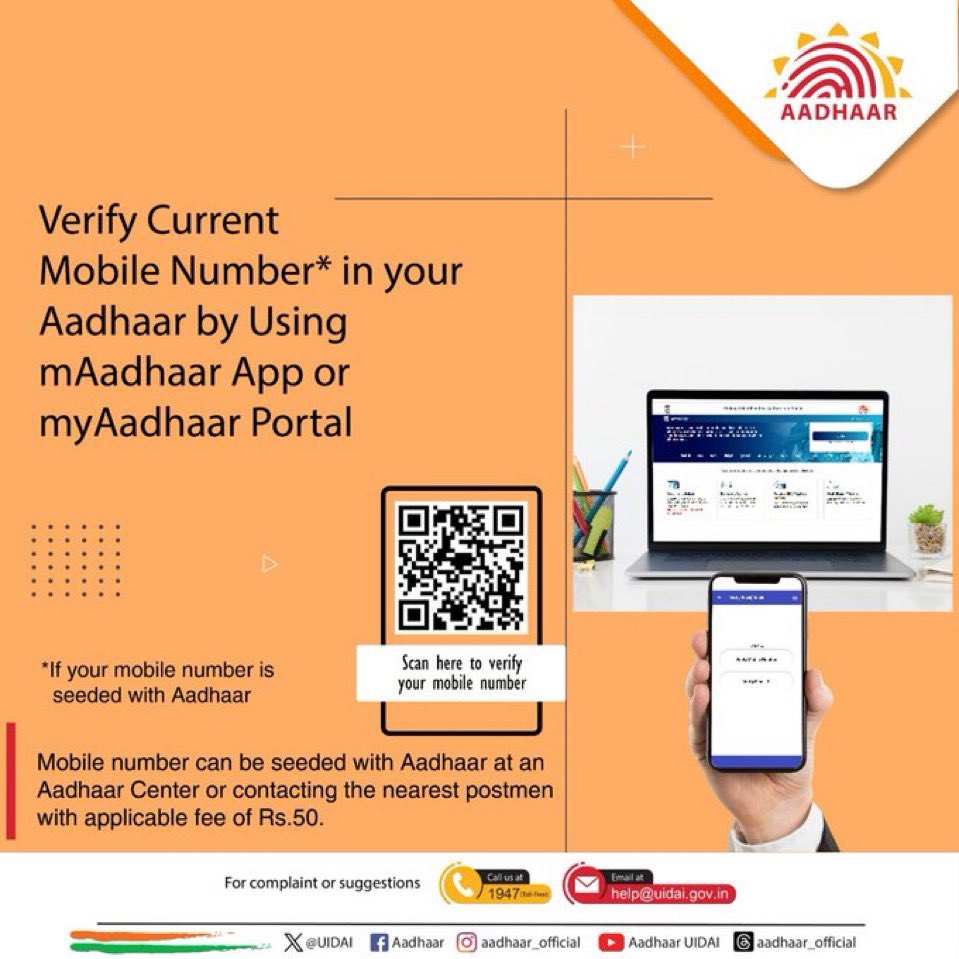
You may always check if your current mobile number is updated with #Aadhaar. Visit #myAadhaar Portal or #mAadhaar app to verify your current mobile number with your Aadhaar.