

100 Excel Shortcuts Explained with Examples (2025 Guide for Beginners to Advanced Users)
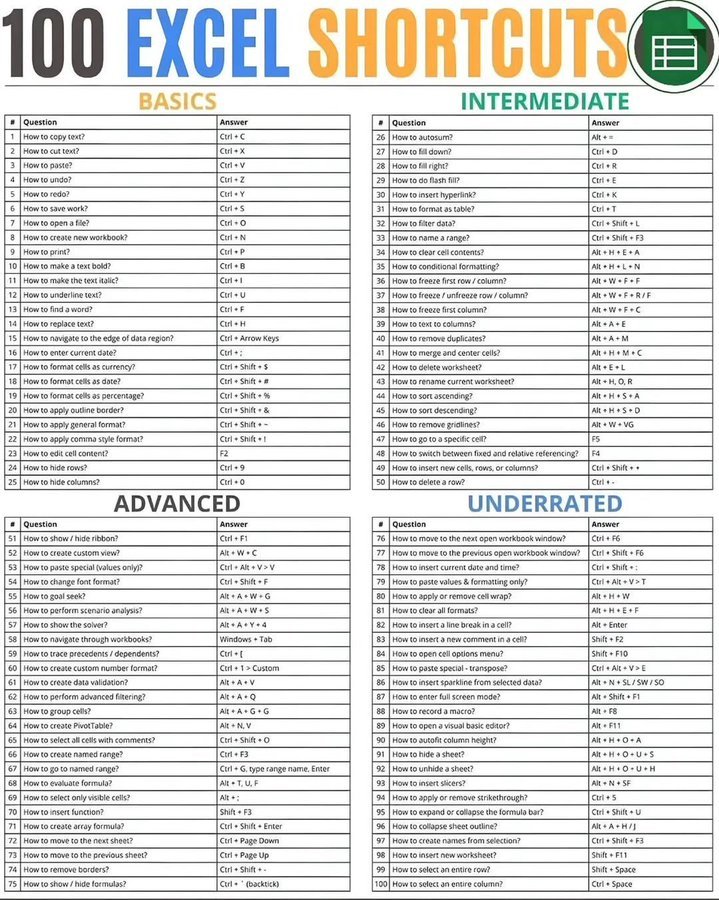
100 Excel Shortcuts Explained with Examples (2025 Guide for Beginners to Advanced Users) | 100 Excel Shortcuts chart, which is divided into 4 categories:
🟢 Basics
🔵 Intermediate
🟣 Advanced
🟡 Underrated
🟢 BASICS (1–25) Excel Shortcuts Explained with Examples
| # | Shortcut | Description | Example |
| 1 | Ctrl + C | Copy selected text or cell contents. | Select cell A1 → press Ctrl + C to copy its value. |
| 2 | Ctrl + X | Cut selected content. | Select A1 → Ctrl + X, then paste in B1. |
| 3 | Ctrl + V | Paste copied/cut content. | After copying, press Ctrl + V in another cell. |
| 4 | Ctrl + Z | Undo last action. | Deleted a row by mistake? Press Ctrl + Z. |
| 5 | Ctrl + Y | Redo undone action. | Undo too far? Press Ctrl + Y to redo. |
| 6 | Ctrl + S | Save current workbook. | Quickly save updates by pressing Ctrl + S. |
| 7 | Ctrl + O | Open existing workbook. | Brings up file explorer to open a file. |
| 8 | Ctrl + N | Create a new workbook. | Instantly open a new Excel file. |
| 9 | Ctrl + P | Print the workbook. | Opens the print window. |
| 10 | Ctrl + B | Make text bold. | Select A1, press Ctrl + B to bold it. |
| 11 | Ctrl + I | Italicize text. | Select any cell → Ctrl + I. |
| 12 | Ctrl + U | Underline text. | Select cell → Ctrl + U. |
| 13 | Ctrl + F | Find a word or value. | Opens the Find dialog box. |
| 14 | Ctrl + H | Find and replace. | Replace all “USD” with “KWD.” |
| 15 | Ctrl + Arrow Keys | Navigate to edge of data region. | Jump to last filled cell in a direction. |
| 16 | Ctrl + ; (semicolon) | Enter current date. | Inserts today’s date in a cell. |
| 17 | Ctrl + Shift + $ | Format cell as currency. | Converts numbers to $ format. |
| 18 | Ctrl + Shift + # | Format cells as date. | Turns 45123 → 10-Oct-2023. |
| 19 | Ctrl + Shift + % | Format as percentage. | 0.25 becomes 25%. |
| 20 | Ctrl + 1 | Open Format Cells dialog. | Customize number, border, or font. |
| 21 | Ctrl + Shift + ~ | Apply General format. | Resets cell formatting. |
| 22 | Ctrl + Shift + ! | Apply two-decimal numeric format. | 1234 becomes 1,234.00. |
| 23 | F2 | Edit cell content directly. | Instead of double-clicking. |
| 24 | Ctrl + 9 | Hide selected rows. | Hide row 5 quickly. |
| 25 | Ctrl + 0 | Hide selected columns. | Hide column C instantly. |
How To Install IT – Software and Hardware with Network https://how-to-install-it.blogspot.com
Kuwait Bus Route – Latest Bus Routes in Kuwait and Bus stops https://kuwaitbusroute.blogspot.com
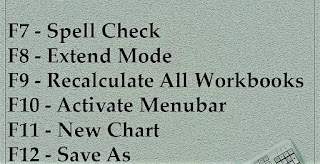
Microsoft Excel Shortcuts
F7 – Spell Check
F8- Extend Mode
F9- Recalculate All Workbooks
F10- Activate Menubar
F11- New Chart
F12- Save As
🔵 INTERMEDIATE (26–50) Excel Shortcuts Explained with Examples
| # | Shortcut | Description | Example |
| 26 | Alt + = | Autosum selected range. | Quickly sum numbers in a column. |
| 27 | Ctrl + D | Fill down. | Copy top cell to cells below. |
| 28 | Ctrl + R | Fill right. | Copy left cell to right cells. |
| 29 | Ctrl + E | Flash fill pattern. | Type pattern (e.g., first names), Excel fills rest. |
| 30 | Ctrl + K | Insert hyperlink. | Link text to a website or file. |
| 31 | Ctrl + T | Format data as a table. | Converts range into a sortable table. |
| 32 | Ctrl + Shift + L | Toggle filters on/off. | Adds or removes filter arrows. |
| 33 | Ctrl + F3 | Name a range. | Create named range for formulas. |
| 34 | Alt + H + E + A | Clear all cell contents. | Clears value and formatting. |
| 35 | Alt + H + L + N | Conditional formatting. | Add rules to highlight cells. |
| 36 | Alt + W + F + F | Freeze first row. | Keeps top row visible while scrolling. |
| 37 | Alt + W + F + C | Freeze first column. | Keeps leftmost column visible. |
| 38 | Alt + H + M + C | Merge & center. | Combine multiple cells. |
| 39 | Alt + A + M | Remove duplicates. | Removes repeated values in a list. |
| 40 | Alt + H + D + S | Delete worksheet. | Deletes active sheet. |
| 41 | Alt + H + O + R | Rename worksheet. | Opens rename option. |
| 42 | Alt + A + S + A | Sort ascending. | Sort A–Z. |
| 43 | Alt + A + S + D | Sort descending. | Sort Z–A. |
| 44 | Alt + H + B + G | Remove gridlines. | Hide gridlines for clean view. |
| 45 | Ctrl + G | Go to specific cell. | Opens Go To box (e.g., B45). |
| 46 | F4 | Toggle between absolute/relative cell reference. | Switch A1 → $A$1 etc. |
| 47 | Ctrl + Shift + “+” | Insert new row/column. | Adds a new cell area. |
| 48 | Ctrl + – (minus) | Delete selected row/column. | Removes unwanted data. |
| 49 | Ctrl + Space | Select entire column. | Quickly highlight a full column. |
| 50 | Shift + Space | Select entire row. | Highlight full row. |
Kuwait Jobs News for Latest Updates https://kuwaitjobsnews.com
100 Microsoft Excel Shortcuts | iiQ8 Education
Microsoft Excel Shortcuts how to install it blogspot
🟣 ADVANCED (51–75) Excel Shortcuts Explained with Examples
| # | Shortcut | Description | Example |
| 51 | Ctrl + F1 | Show/hide ribbon. | Maximizes workspace. |
| 52 | Alt + W + C | Create custom view. | Save display or filter settings. |
| 53 | Alt + E + S + V | Paste special (values only). | Paste results, not formulas. |
| 54 | Alt + H + F + W | Change format width. | Adjusts column width automatically. |
| 55 | Alt + A + W + G | Goal Seek tool. | Find input to reach a target output. |
| 56 | Alt + T + A | Run Solver add-in. | Optimize data based on constraints. |
| 57 | Ctrl + [`] | Trace precedents/dependents. | Show formula links. |
| 58 | Alt + H + 0 | Increase decimal places. | Show more decimal precision. |
| 59 | Alt + D + L | Data validation. | Restrict inputs (e.g., dates only). |
| 60 | Alt + A + Q | Advanced filter. | Filter with complex conditions. |
| 61 | Alt + N + V | Insert PivotTable. | Summarize data quickly. |
| 62 | Alt + R + C | Add comments. | Insert a note in a cell. |
| 63 | Ctrl + Shift + F3 | Create named range. | Use first row/column as name. |
| 64 | Alt + E + F | Find next. | Repeat find action. |
| 65 | Alt + M + P | Evaluate formula. | See formula step-by-step. |
| 66 | Ctrl + Shift + 5 | Format as percentage. | 0.45 → 45%. |
| 67 | Alt + E + A + A | Clear all. | Clears everything from selected cell. |
| 68 | Ctrl + Shift + P | Open Font dialog box. | Change font type/size. |
| 69 | Ctrl + Page Down | Move to next sheet. | Navigate through sheets. |
| 70 | Ctrl + Page Up | Move to previous sheet. | Go back one sheet. |
| 71 | Alt + Page Up/Down | Move screen left/right. | Navigate large datasets. |
| 72 | Ctrl + Tab | Switch between workbooks. | Toggle open Excel files. |
| 73 | Ctrl + ` (grave) | Show/hide formulas. | Toggle between results and formulas. |
| 74 | Ctrl + 8 | Show/hide outline symbols. | Useful for grouped data. |
| 75 | Ctrl + ~ | General number format. | Reverts to unformatted number. |
Excel Shortcuts Explained with Examples , 100 Excel Shortcuts,
Microsoft Excel Shortcuts how to install it blogspot
100 Excel Shortcuts Explained with Examples (2025 Guide for Beginners to Advanced Users)
🟡 UNDERRATED (76–100) Excel Shortcuts Explained with Examples
| # | Shortcut | Description | Example |
| 76 | Ctrl + F6 | Move to next open workbook. | Cycle through files. |
| 77 | Ctrl + Shift + F6 | Move to previous workbook. | Go backward through open files. |
| 78 | Alt + H + V + T | Paste format only. | Copy formatting style only. |
| 79 | Alt + H + V + A | Paste values and number formats. | Keeps numeric look intact. |
| 80 | Alt + Enter | Insert line break in cell. | Breaks text within one cell. |
| 81 | Alt + E + S + T | Paste special – Transpose. | Swap rows and columns. |
| 82 | Alt + D + F + F | Create filter. | Quick data filtering. |
| 83 | Alt + H + O + I | AutoFit column width. | Adjusts width automatically. |
| 84 | Alt + H + O + A | AutoFit row height. | Adjusts row height automatically. |
| 85 | Alt + F11 | Open VBA editor. | For macro creation. |
| 86 | Ctrl + 9 | Hide rows. | Conceal unnecessary data. |
| 87 | Ctrl + Shift + 9 | Unhide hidden rows. | Reveal hidden rows. |
| 88 | Ctrl + 0 | Hide columns. | Conceal columns. |
| 89 | Ctrl + Shift + 0 | Unhide columns. | Reveal hidden columns. |
| 90 | Alt + W + S | Split window view. | View different parts of a sheet. |
| 91 | Ctrl + Shift + L | Toggle filters on/off. | Add/remove filter arrows. |
| 92 | Ctrl + 5 | Apply or remove strikethrough. | Cross out completed tasks. |
| 93 | Ctrl + Shift + F | Open Format Cells dialog. | Full customization options. |
| 94 | Alt + H + B + A | Apply border to all sides. | Outlines selected cells. |
| 95 | Alt + H + B + N | Remove all borders. | Clears borders instantly. |
| 96 | Alt + H + M + U | Unmerge merged cells. | Reverts merged area to individual cells. |
| 97 | Alt + F8 | Run macro. | Execute a saved macro. |
| 98 | Alt + F11 | Open Visual Basic Editor. | Develop or debug macros. |
| 99 | Alt + F4 | Close Excel. | Exit the program. |
| 100 | Ctrl + Space | Select column. | Highlight the entire column. |
The Ultimate 2025 Cybersecurity Templates Guide: A Complete Resource for Students & Professionals
telugu lo kathalu stories gelupu garvam గెలుపు గర్వం