

How to install it blogspot Microsoft Excel Shortcuts – Whether you’re a data analyst, accountant, student, or business owner, these shortcuts will help you:
-
Navigate massive spreadsheets with ease
-
Select, format, and manage data without touching the mouse
-
Build and audit formulas faster
-
Create new sheets, tables, and workbooks in seconds
-
Automate repetitive tasks
-
And much more…
Ctrl + A ===> Select All
Ctrl + B ===> Bold
Ctrl + C ===> Copy
Ctrl + D ===> Fill Down
Ctrl + F ===> Find
Ctrl + G ===> Goto
Ctrl + H ===> Replace ( Find and replace )
Ctrl + I ===> Italic
Ctrl + K ===> Insert Hyperlink

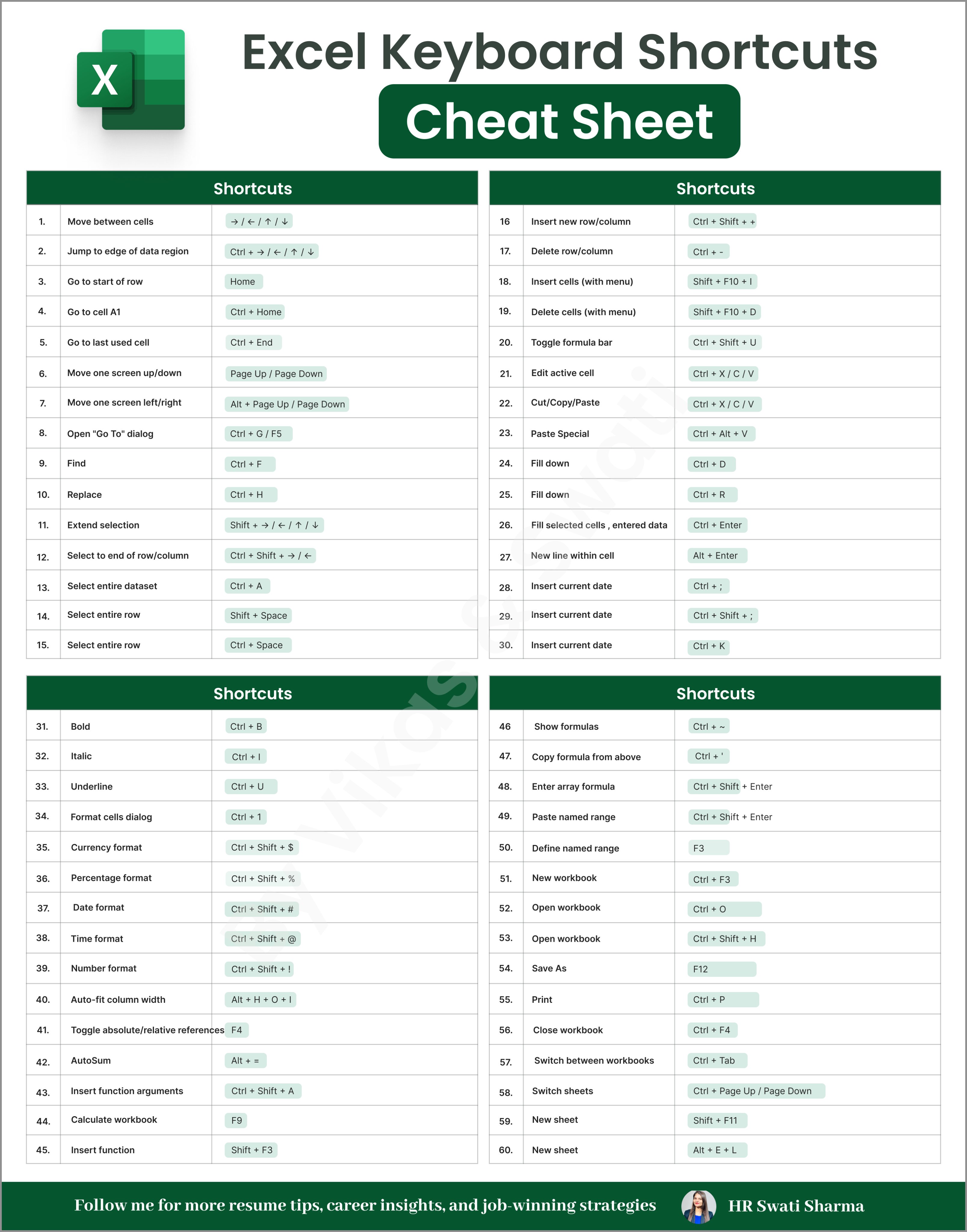
✅ 1. Navigation Shortcuts (Move Around FAST)
| Shortcut | What It Does | Example |
| Ctrl + Arrow Keys | Jump to the edge of data in a direction | Press Ctrl + ↓ to jump to the last row with data |
| Ctrl + Home | Go to cell A1 instantly | Great when you’re lost deep in the sheet |
| Ctrl + End | Jump to the last used cell | Goes to the bottom-right corner of used range |
| Page Up / Page Down | Move screen up/down one page | Use in large datasets |
| Alt + Page Up / Page Down | Move screen left/right | Horizontal scrolling |
How to install it blogspot Microsoft Excel Shortcuts
✅ 2. Selecting Data (Smarter, Not Harder)
| Shortcut | What It Does | Example |
| Ctrl + A | Select entire data table | In a cell in a table, press Ctrl + A once or twice |
| Ctrl + Shift + → / ↓ | Extend selection to end of data | Useful for selecting large columns/rows |
| Shift + Space | Select entire row | Highlight a row without using mouse |
| Ctrl + Space | Select entire column | Same as above but for columns |
| Ctrl + Shift + Space | Select entire worksheet (when in table) | Selects the entire table |
| Ctrl + Shift + * (asterisk) | Select current region (data block) | Selects the block around your current cell |
✅ 3. Inserting & Deleting
| Shortcut | What It Does | Example |
| Ctrl + Shift + = | Insert a new row or column | Select a row and use to insert above |
| Ctrl + – | Delete selected row/column | Removes the selected row or column |
| Shift + F10, then I | Open insert cells menu | Alternative method with menu control |
✅ 4. Formatting (Make It Look Good)
| Shortcut | What It Does | Example |
| Ctrl + B | Bold selected text | Highlight a cell, press to bold it |
| Ctrl + I | Italicize selected text | Like bold, but italic |
| Ctrl + U | Underline text | Underlines entire cell contents |
| Ctrl + 1 | Format cells dialog box | Access full formatting options |
| Ctrl + Shift + $ | Apply currency format | Turns 1000 into $1,000.00 |
| Ctrl + Shift + % | Apply percentage format | Turns 0.85 into 85% |
| Ctrl + Shift + # | Apply date format | Turns 9/27/2025 into 27-Sep-25 |
| Ctrl + Shift + @ | Time format | Turns 13:00 into 1:00 PM |
✅ 5. Formula Shortcuts (The Real Power)
| Shortcut | What It Does | Example |
| =SUM(A1:A10) | Adds all values in range | Returns total sum |
| =AVERAGE(B1:B10) | Calculates average | Useful for test scores, etc. |
| =IF(A1>50, “Pass”, “Fail”) | Logical condition | Displays “Pass” if A1 > 50 |
| Ctrl + ` (grave accent) | Show all formulas | Toggles between values & formulas |
| Ctrl + Shift + Enter | Enter array formula (legacy Excel) | Use with formulas like {=SUM(A1:A5*B1:B5)} |
| Alt + = | AutoSum | Automatically inserts =SUM(…) |
| F4 | Repeat last action / Lock cell reference | Press after typing A1 to toggle $A$1, A$1, etc. |
| Ctrl + [ | Jump to precedent cells | Navigate to cells used in current formula |
| Ctrl + ] | Jump to dependent cells | See where the formula is being used |
Top Windows Network Commands Every IT Professional Must Master | iiQ8
✅ 6. Workbook / Sheet Management
| Shortcut | What It Does | Example |
| Ctrl + N | New workbook | Starts a fresh file |
| Ctrl + O | Open existing workbook | Browse files |
| Ctrl + S | Save current workbook | Always use frequently |
| F12 | Save As dialog | Save under a new name |
| Ctrl + P | Print dialog | Opens print menu |
| Ctrl + F4 | Close workbook | Close current file only |
| Shift + F11 | Insert new worksheet | Adds Sheet2, Sheet3, etc. |
| Alt + E + L | Also inserts a sheet | Legacy Excel shortcut |
| Ctrl + Page Up / Down | Switch between sheets | Navigate through tabs quickly |
| Alt + F4 | Close Excel entirely | Close the whole application |
✅ 7. Find, Replace & Navigation
| Shortcut | What It Does | Example |
| Ctrl + F | Find | Search for a word or value |
| Ctrl + H | Replace | Find and replace values |
| Ctrl + G or F5 | Go to cell or named range | Jump to a specific cell like G200 |
| F2 | Edit cell content | Enters edit mode in cell |
| Ctrl + Enter | Enter same value in multiple selected cells | Type once, fill all |
| Ctrl + D | Fill down from cell above | Copies formula or value from above |
| Ctrl + R | Fill right from left cell | Copies to the right |
| Ctrl + Z | Undo | Roll back last action |
| Ctrl + Y | Redo | Repeat undone action |
Complete Guide to SAP MM Reports and T-Codes & Interview Questions and Answers | iiQ8
How to install it blogspot Microsoft Excel Shortcuts
✅ 8. Working with Tables & Named Ranges
| Shortcut | What It Does | Example |
| Ctrl + T | Create table from selection | Turns data into dynamic Excel Table |
| Ctrl + Shift + L | Toggle filters on/off | Add or remove filter dropdowns |
| Alt + ↓ | Open dropdown in filter | Opens filter menu |
| Ctrl + Shift + F3 | Create named ranges from labels | Use when you have headers |
| F3 | Paste named range | Insert a defined name into a formula |
✅ 9. Miscellaneous
| Shortcut | What It Does | Example |
| Ctrl + Tab | Switch between open workbooks | Move between multiple open files |
| Ctrl + Alt + V | Paste Special | Open menu to paste formats, values, etc. |
| Alt + H + O + I | AutoFit column width | Adjust to fit text |
| Alt + H + O + A | AutoFit row height | Match row height to content |
| Alt + H + D + R | Delete row | Ribbon shortcut |
| Alt + H + D + C | Delete column | Ribbon shortcut |
✅ Example Formula Use with Shortcuts
Let’s say you want to:
➤ Total Sales in Column B
=SUM(B2:B100)
- Type in a cell
- Press Enter
- Or use Alt + = to insert it automatically
➤ Calculate Commission (10%) in Column C
=B2*10%
- Type in C2
- Use Ctrl + Enter to apply it to multiple rows
➤ Create a Table from Sales Data
- Select the range
- Press Ctrl + T → Confirm → Table ready!
Cybersecurity Career Roadmap | iiQ8 How to Start & Grow in Cybersecurity
How to install it blogspot Microsoft Excel Shortcuts