

Microsoft Excel Shortcuts how to install it blogspot
Microsoft Excel Keyboard Shortcuts – Shift + Function Keys Explained (F1 to F6) Microsoft Excel Shortcuts
Boost your productivity with these powerful Shift + Function Key shortcuts in Microsoft Excel. Whether you’re editing formulas, navigating panes, or working with comments, these shortcuts will save you time and clicks.
🔑 Shift + Function Key Shortcuts in Excel
| Shortcut | Function | Description |
| Shift + F1 | 🛈 What’s This? | Opens context-sensitive help or displays information about the selected tool or element. |
| Shift + F2 | 📝 Edit Cell Comment | Opens the comment box of the selected cell to view or edit notes/comments. |
| Shift + F3 | ➕ Insert Function | Opens the Insert Function dialog box to help you choose and add formulas. |
| Shift + F4 | 🔎 Find Next | Repeats the last Find action (just like clicking “Find Next”). |
| Shift + F5 | 🔍 Find | Opens the Find and Replace dialog box with the focus on the Find tab. |
| Shift + F6 | ⬅️ Move to Previous Pane | Cycles to the previous pane in a split worksheet or between the ribbon, worksheet, and task pane. |
💡 Real-World Use Cases
- ✅ Shift + F2: When reviewing a shared sheet, use this to quickly check or edit comments left by collaborators.
- ✅ Shift + F3: Writing a complex formula? Use this to insert predefined Excel functions without typing.
- ✅ Shift + F6: Working in split-view? Switch panes fast while comparing data.
Microsoft Excel Shortcuts
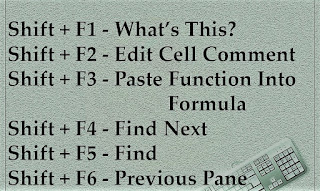
Shift + F2 = Edit Cell comment
Shift + F3 = Paste Function Into Formula
Shift + F4 = Find Next
Shift + F5 = Find
Shift + F6 = Previous Pane
Master Microsoft Excel Like a Pro – Must-Know Formulas, Tricks & Examples for 2025
Looking to save hours of work and become an Excel expert faster than ever? Whether you’re a beginner just starting out or an advanced user looking to sharpen your skills, mastering these essential Excel formulas and shortcuts will boost your productivity and efficiency.
This 2025 updated guide walks you through the most useful formulas, smart tricks, and real-world examples that professionals use daily to manage data, automate tasks, and solve problems.
Microsoft Excel Shortcuts how to install it blogspot
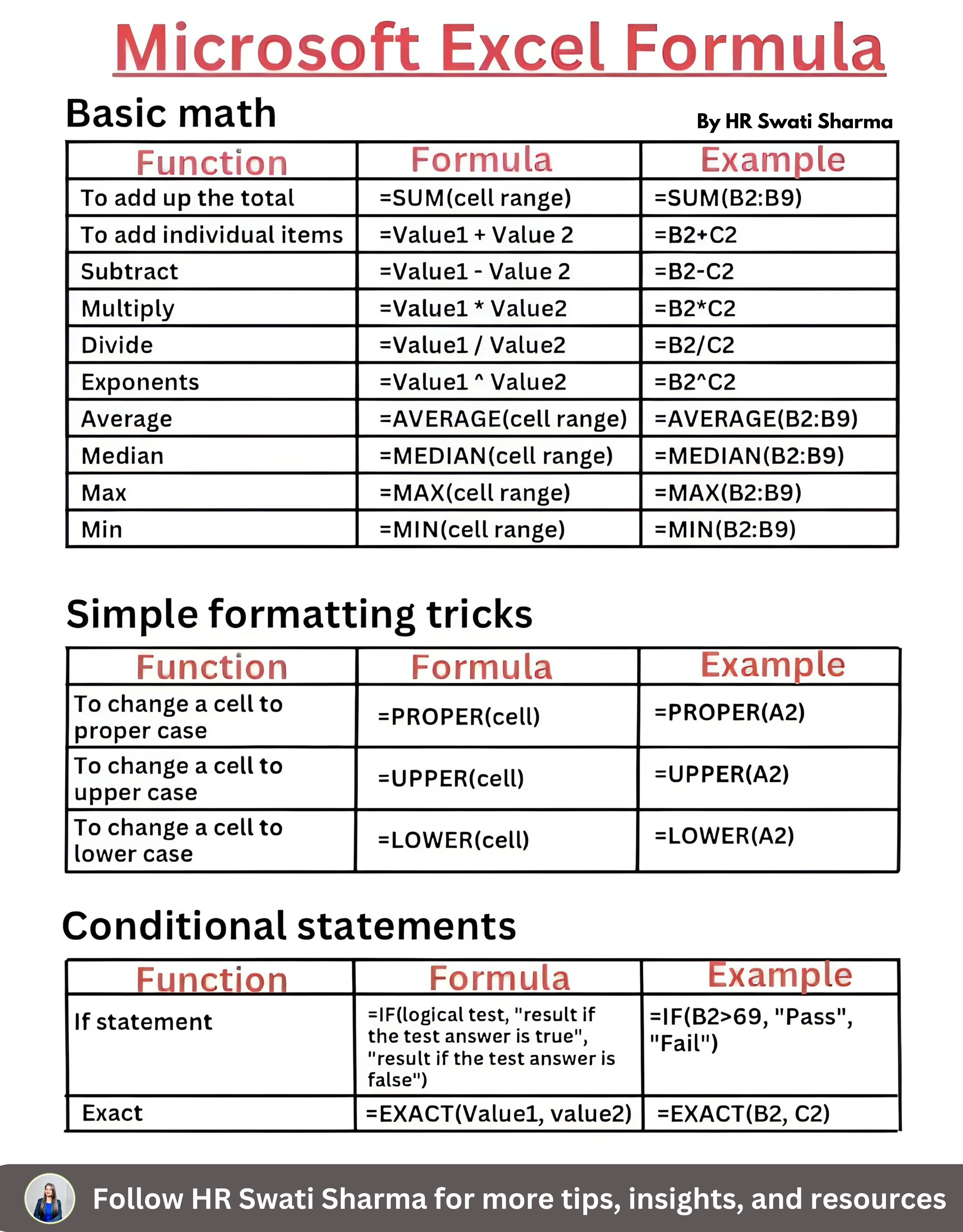
🔢 Basic Math Formulas in Excel
These are the foundational formulas every Excel user must know to perform everyday calculations quickly.
| Formula | Function | Example |
| =SUM(B2:B9) | Adds values in a range | Adds all values from B2 to B9 |
| =B2-C2 | Subtracts one value from another | Subtracts C2 from B2 |
| =B2*C2 | Multiplies values | Multiplies B2 and C2 |
| =B2/C2 | Divides values | Divides B2 by C2 |
| =AVERAGE(B2:B9) | Calculates average | Finds the average of values in B2 to B9 |
| =MAX(B2:B9) | Finds maximum value | Returns the highest number in B2 to B9 |
| =MIN(B2:B9) | Finds minimum value | Returns the lowest number in B2 to B9 |
Complete Guide to SAP MM Reports and T-Codes & Interview Questions and Answers | iiQ8
✨ Excel Text Formatting Functions
Want to clean up inconsistent data? Use these formulas to format text instantly.
| Formula | Function | Example |
| =PROPER(A2) | Capitalizes first letter of each word | Converts “hello world” to “Hello World” |
| =UPPER(A2) | Converts text to uppercase | Converts “excel” to “EXCEL” |
| =LOWER(A2) | Converts text to lowercase | Converts “Excel” to “excel” |
These are super helpful when dealing with imported data or inconsistent user inputs.
⚡ Conditional Formulas in Excel
Conditional logic helps Excel make decisions automatically. Perfect for grading, categorization, and validations.
| Formula | Function | Example |
| =IF(B2>69,”Pass”,”Fail”) | Returns “Pass” if the value is above 69, else “Fail” | Used for grading or performance checks |
| =EXACT(B2,C2) | Checks if two cells are exactly the same | Returns TRUE if values match, FALSE otherwise |
These formulas help build dynamic spreadsheets that respond to changing data.
🧠 Pro Tips to Excel Like a Pro
- Use cell locking with $ signs (e.g., $A$1) for absolute references in formulas
- Combine functions like =IF(AND(…), …, …) for more complex logic
- Use Ctrl + Shift + L to add filters instantly
- Learn Pivot Tables for data summarization
Top Windows Network Commands Every IT Professional Must Master | iiQ8
Learn the best Excel formulas and tricks that will save you hours of work! This guide covers basic math, text formatting, and conditional logic with real examples — perfect for beginners and pros in 2025.
best Excel formulas, Excel tricks for beginners, learn Excel fast, Microsoft Excel tips, Excel formatting formulas, Excel conditional formulas, Excel IF formula, Excel text functions, how to use Excel formulas, Excel tutorial for beginners, productivity with Excel, Excel hacks 2025, Excel functions list, Excel spreadsheet formulas
🧩 Bonus: Real-World Example Scenario
Scenario: You’re a teacher tracking student scores.
| Name | Score | Result |
| John | 72 | =IF(B2>69,”Pass”,”Fail”) → Pass |
| Mary | 65 | =IF(B3>69,”Pass”,”Fail”) → Fail |
Now, use =AVERAGE(B2:B10) to find the class average, and =MAX(B2:B10) to identify the top scorer.
Cybersecurity Career Roadmap | iiQ8 How to Start & Grow in Cybersecurity